
DRT / TRAINING
Learn your equipment.
Watch official installation, setup and operating tutorials on DRT. Choose a brand, check the model label and continue with its manuals and software guides.
13 official videos across 6 brand learning paths, plus model-specific support for FJD Landscape. Playback stays on DRT; original-source links are available for every video.
7 resources
No matching resources. Try another brand or search term.
 DJI
Getting started · Software
DJI Enterprise: mission to deliverable
Build a foundation in FlightHub 2, from project setup to reviewing mission data.
Open learning path Close details
 DJI
Getting started · Software
DJI Enterprise: mission to deliverable
Build a foundation in FlightHub 2, from project setup to reviewing mission data.
Open learning path Close detailsFlightHub 2: course introduction
Open official video (opens in a new tab)Organization and project setup
Open official video (opens in a new tab)Mission planning
Open official video (opens in a new tab)Suggested learning path
- Set up your workspace. Start with the official course introduction, then organization and project setup.
- Learn the mission tools. Continue to mission planning and the lessons relevant to your aircraft or Dock workflow.
- Review the output. Work through the media library and post-processing lessons before planning a team handoff.
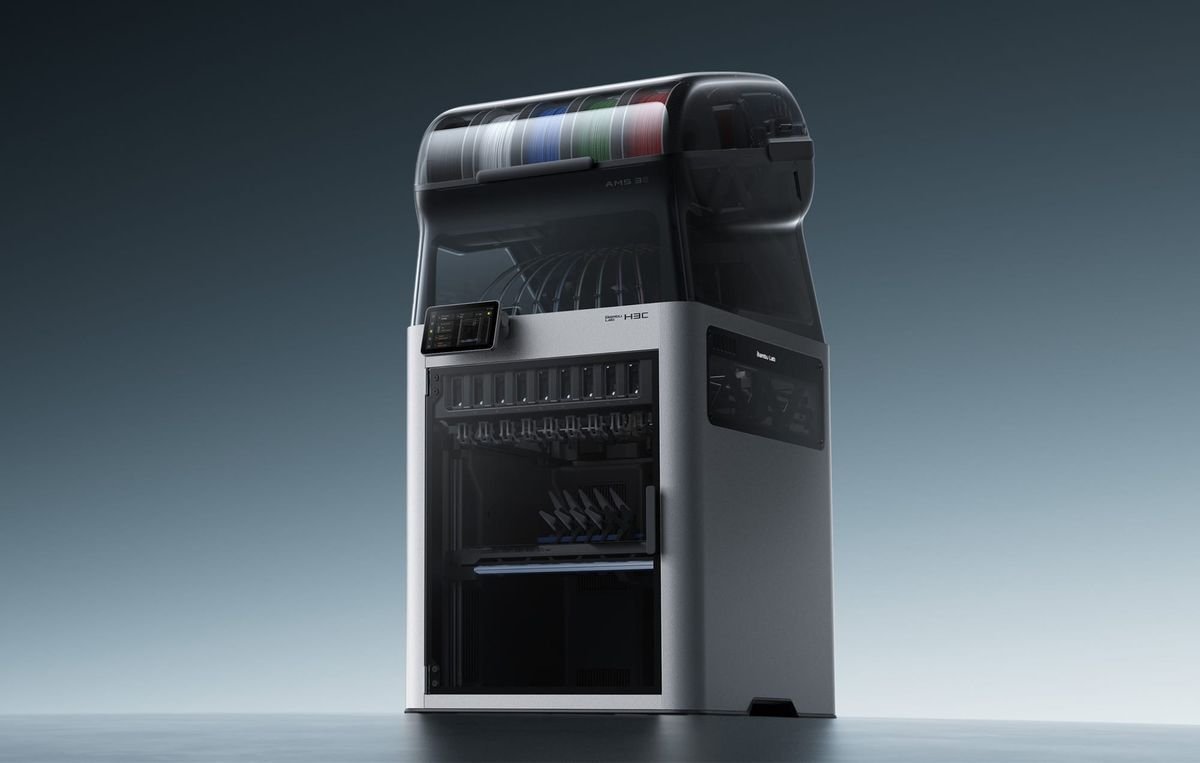 Bambu Lab
Getting started · 3D printing
Bambu Lab: your first repeatable print
Follow the official A1 Combo unboxing video, then use the Wiki and Bambu Studio resources for your exact printer.
Open learning path Close details
 Bambu Lab
Getting started · 3D printing
Bambu Lab: your first repeatable print
Follow the official A1 Combo unboxing video, then use the Wiki and Bambu Studio resources for your exact printer.
Open learning path Close detailsA1 Combo unboxing guide
Open official video (opens in a new tab)Suggested learning path
- Start with your printer. Find its setup and maintenance instructions in Bambu Lab Wiki; choose the exact model and accessory configuration.
- Prepare a small project. Install Bambu Studio and learn the Prepare, Preview and Device views.
- Keep a useful record. Save the project, material and profile together, then note which visible features you want to improve.
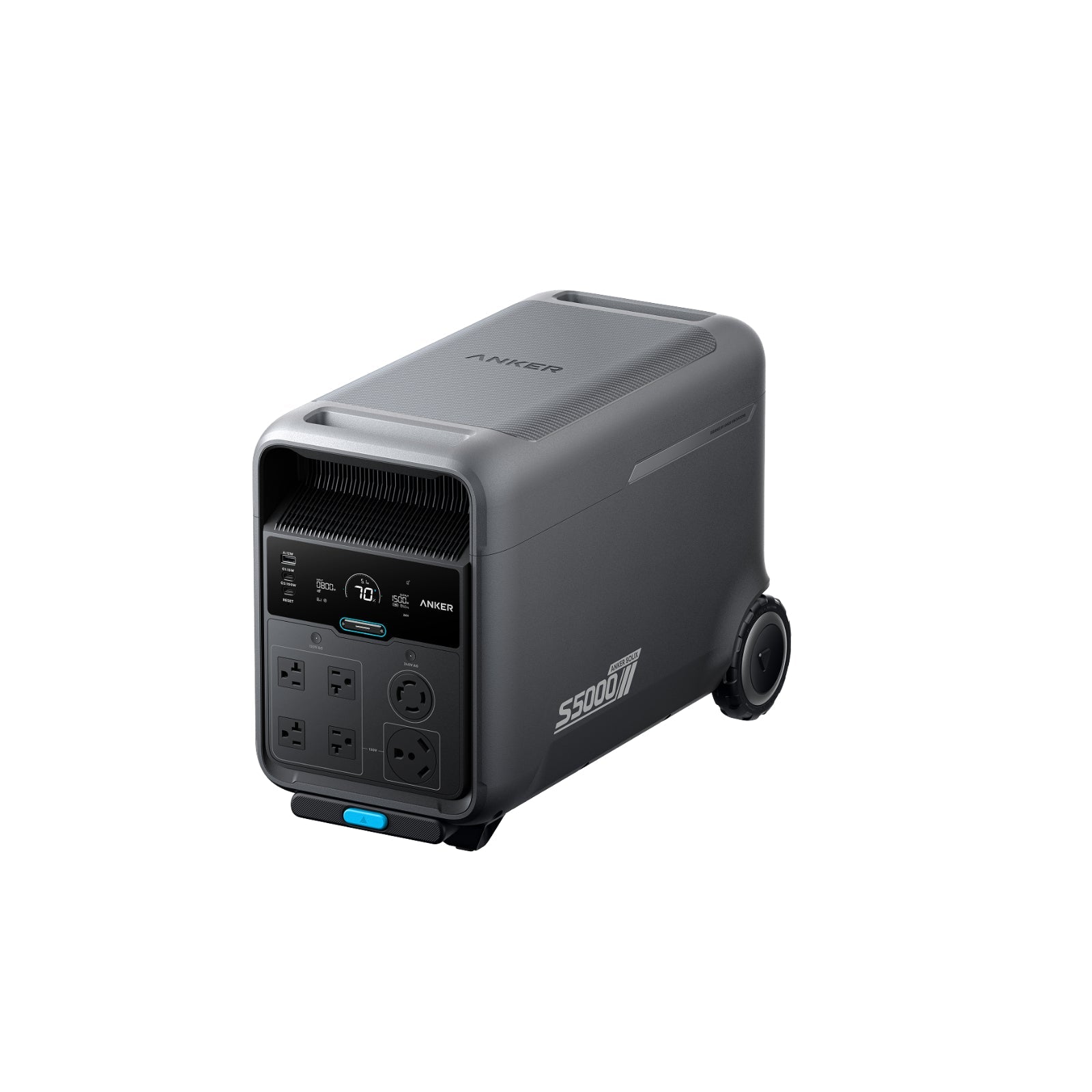 Anker SOLIX
Planning · Home backup
Anker SOLIX: plan your backup setup
Official E10 installation orientation, F3800 operation and Home Power Panel app setup. Choose the video for your exact equipment.
Open learning path Close details
 Anker SOLIX
Planning · Home backup
Anker SOLIX: plan your backup setup
Official E10 installation orientation, F3800 operation and Home Power Panel app setup. Choose the video for your exact equipment.
Open learning path Close detailsE10 installation overview
Open official video (opens in a new tab)F3800 how-to guide
Open official video (opens in a new tab)Home Power Panel: Anker App setup
Open official video (opens in a new tab)Suggested learning path
- Define the job. List the devices or circuits you want to support and the intended operating time.
- Match the documentation. Review the manuals for the exact power station and accessories. E10 users can follow the official installation support hub.
- Prepare for handover. Review the relevant quick-start guide and prepare questions about app setup, routine checks and service.
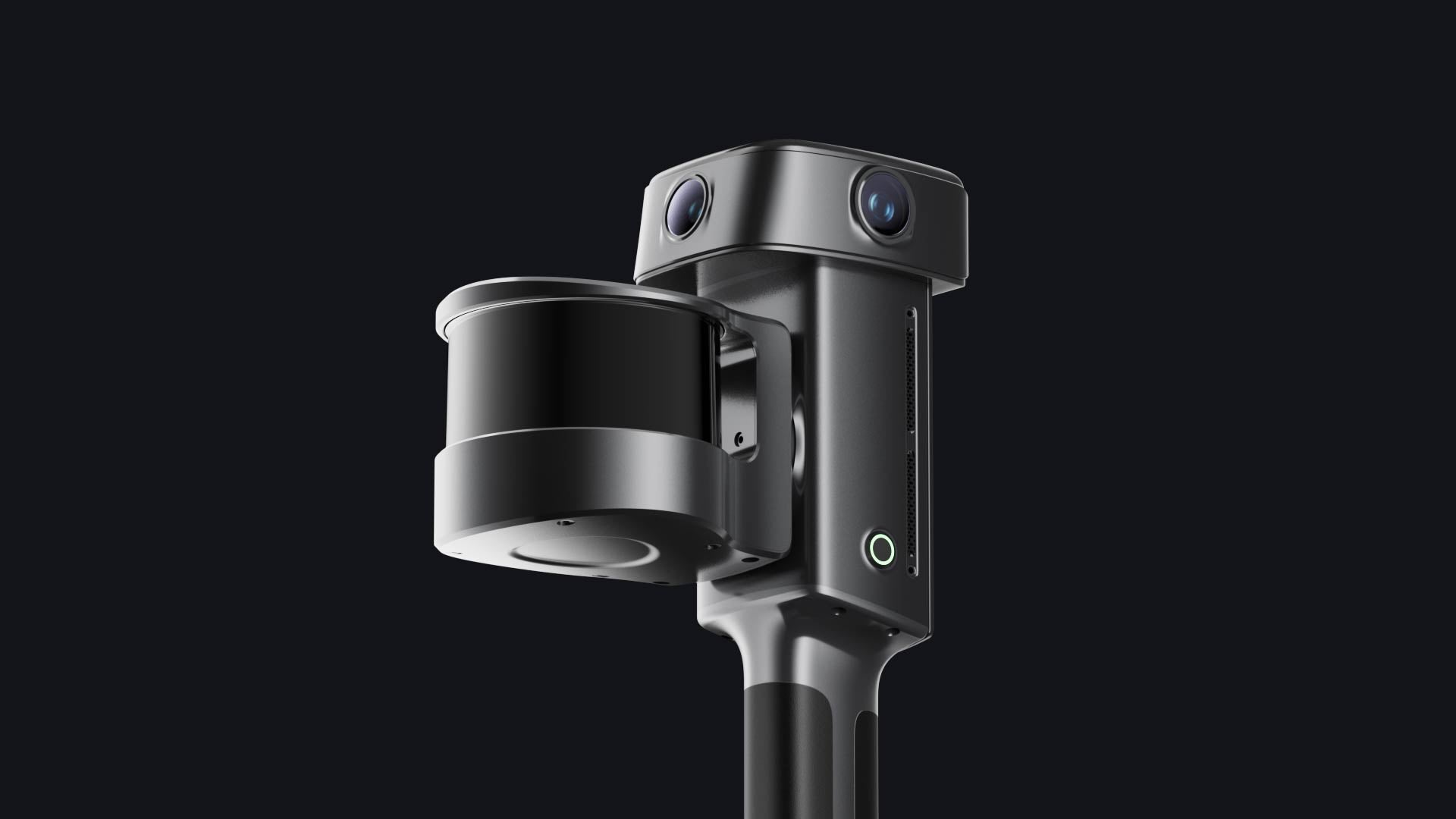 XGRIDS
Field capture · Software
XGRIDS: capture, process, review
Watch L2 Pro hardware setup and LixelStudio software tutorials. For L3, K2 and PortalCam, use the matching device manual below.
Open learning path Close details
 XGRIDS
Field capture · Software
XGRIDS: capture, process, review
Watch L2 Pro hardware setup and LixelStudio software tutorials. For L3, K2 and PortalCam, use the matching device manual below.
Open learning path Close detailsL2 Pro: unboxing & quick start
Open official video (opens in a new tab)LixelStudio: installation and activation
Open official video (opens in a new tab)LixelStudio: loading and viewing data
Open official video (opens in a new tab)Suggested learning path
- Select your device manual. Use the L3, L2 Pro, K2 or PortalCam chapter that matches your scanner.
- Follow the data path. Review activation and capture, then the appropriate LixelStudio or LCC Studio processing chapter.
- Check the handoff. Decide whether the project needs a point cloud, mesh or visual scene and review the matching export and licensing guidance.
 FJD Agriculture
Getting started · Autosteering
FJD Agriculture: prepare your first setup
Learn field and guidance-line setup with official AT2 videos. For AT2 Max or another kit, check the matching manual and software version.
Open learning path Close details
 FJD Agriculture
Getting started · Autosteering
FJD Agriculture: prepare your first setup
Learn field and guidance-line setup with official AT2 videos. For AT2 Max or another kit, check the matching manual and software version.
Open learning path Close detailsAT2: create your field
Open official video (opens in a new tab)AT2: create a guidance line
Open official video (opens in a new tab)Suggested learning path
- Identify the configuration. Record the tractor model, steering configuration and FJD kit before selecting a guide.
- Gather the documents. Use the DRT installation-resource directory for AT2-family manuals and official video resources.
- Plan the walkthrough. Review the manual sections on setup, calibration and first use with the person responsible for installation.
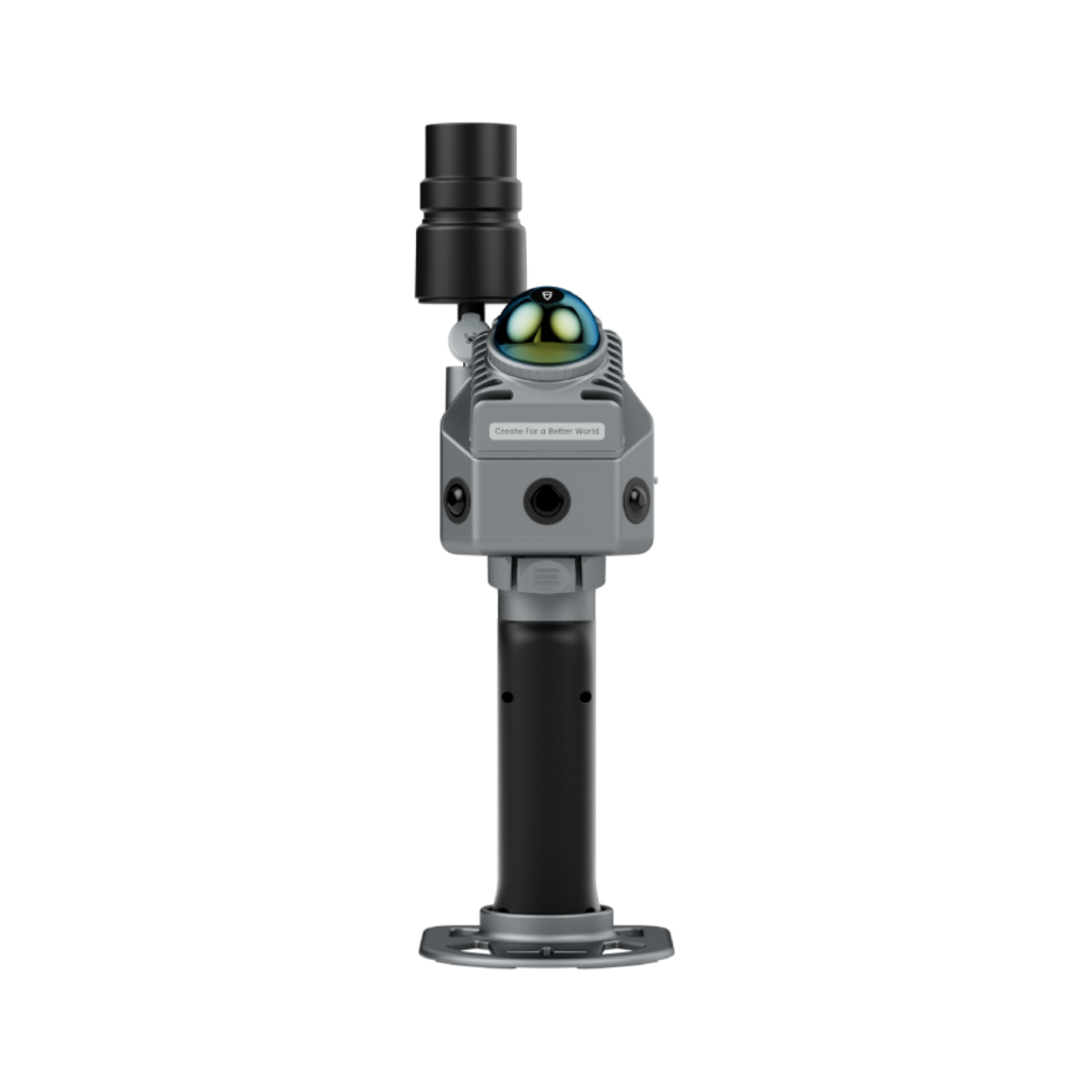 FJD Trion
Getting started · LiDAR
FJD Trion: from P2 setup to a point cloud
Start with the official P2 quick-start video, then continue to the Scan app and Model software.
Open learning path Close details
 FJD Trion
Getting started · LiDAR
FJD Trion: from P2 setup to a point cloud
Start with the official P2 quick-start video, then continue to the Scan app and Model software.
Open learning path Close detailsTrion P2: unboxing & quick start
Open official video (opens in a new tab)Suggested learning path
- Know the hardware. Watch the P2 unboxing and quick-start video and read the corresponding hardware manual.
- Prepare the software. Check the official support center for the scanner, Scan app and Model version requirements.
- Build the workflow. Use a small project to learn import, inspection and export before progressing to a larger survey.
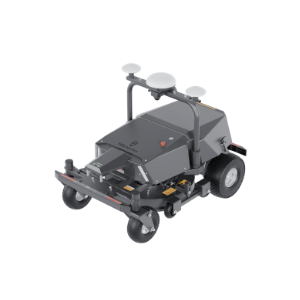 FJD Landscape
Manuals & guided onboarding
FJD Landscape: RM21P & ATX onboarding
Model-specific support for RM21P and ATX. Request the matching installation and app resources from DRT before starting.
Open learning path Close details
 FJD Landscape
Manuals & guided onboarding
FJD Landscape: RM21P & ATX onboarding
Model-specific support for RM21P and ATX. Request the matching installation and app resources from DRT before starting.
Open learning path Close detailsSuggested learning path
- Identify the machine. Confirm RM21P or ATX, the installed accessories and the applicable manual.
- Learn the app layout. Review the FJD Landscaping support resources for device management, maps and task settings.
- Plan supervised onboarding. Prepare the site layout and questions about work areas, obstacles, schedules and maintenance for your equipment walkthrough.
Resources checked Nov 9, 2026
Bring your next question to DRT.
Tell us your product, experience level and what you want to learn. We can help you find the right resources and discuss training options for your team.